







Secure Boot Certificate Expiry 2026: What Every Windows User Needs to Know
The Secure Boot certificate expiry 2026 is one of those quiet but important moments in the world of computing that most users will never think about — until it suddenly affects them. These certificates have been doing their job silently inside your PC’s firmware for over a decade, ever since they were introduced in 2011. But that long, smooth run is about to come to an end. The original Secure Boot certificates are set to expire in June 2026, and while Microsoft is pushing updates automatically to many devices, a significant number of PCs may quietly fall through the cracks.
If you’re wondering whether your machine is ready, this guide will walk you through what’s happening, why it matters, and exactly how to check and fix the issue before deadline day arrives.
What Secure Boot Actually Does
Secure Boot is one of those background features that does a lot of heavy lifting without anyone noticing. It works as part of the UEFI firmware on your PC, ensuring that only trusted, signed software is allowed to run during startup. This protects your system from low-level attacks, rootkits, and unauthorized boot-time code.
Without active and up-to-date Secure Boot certificates, your PC could become more vulnerable to:
- Malicious bootloaders running before Windows even loads
- Tampered firmware altering core system functions
- Long-term security risks across the entire device lifecycle
- Failed authentication for legitimate Windows updates
That’s why this expiry matters more than it sounds. Your PC may keep working in the short term, but the long-term security implications are serious.
Step 1: Check If Your PC Already Has the New Certificates
Before doing anything else, take a few seconds to find out exactly where your PC stands. The fastest way is to use PowerShell.
Here’s how to check:
- Open the Start menu and type PowerShell
- Right-click and choose “Run as administrator”
- Paste in the following command exactly as written, then press Enter
([System.Text.Encoding]::ASCII.GetString((Get-SecureBootUEFI db).bytes) -match ‘Windows UEFI CA 2023’)
You’ll see one of two responses on the screen — either True or False. A True result means your system already has the updated 2023 Secure Boot certificates installed, and you have nothing to worry about. A False result means your PC is still relying on the old certificates that are about to expire, and it’s time to take action.
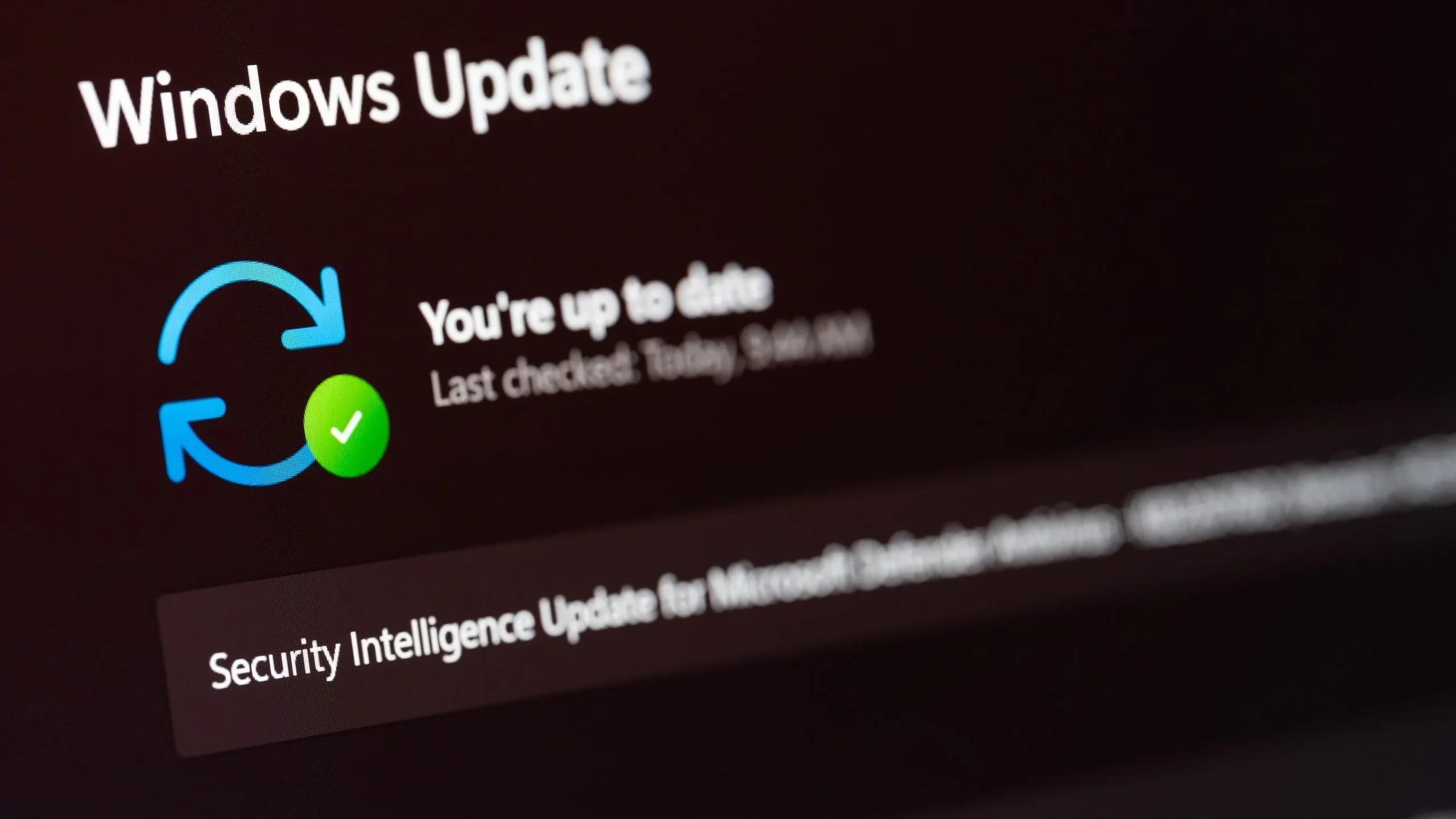
Step 2: Run Windows Update and Check for OEM Firmware Updates
If your check returned False, the easiest first move is to update your system. For the majority of Windows 11 users, Microsoft is rolling out the new certificates through standard Windows Update.
Here’s what to do:
- Open Settings
- Go to Windows Update
- Click “Check for updates”
- Install everything that’s available
- Restart your PC and run the PowerShell check again
If a routine update doesn’t resolve the problem — which can happen on older hardware — the next step is to look beyond Microsoft. Many PCs receive Secure Boot certificate updates through firmware delivered by the device manufacturer rather than the operating system itself.
Visit the official support page of your PC’s manufacturer. Some of the major OEMs include:
- Dell
- HP
- Lenovo
- ASUS
- Acer
- MSI
Search for your specific model and check whether new firmware or driver updates are available. While not every manufacturer will continue supporting older systems, you’d be surprised how many do, especially for business-class laptops and desktops.
Step 3: Try the Manual Registry Method If Firmware Isn’t Available
If your PC manufacturer hasn’t released the necessary firmware update, but you’re still running a supported version of Windows 11, there’s another way to apply the new certificates without diving into the BIOS. Microsoft has officially documented a workaround using the registry.
Here’s how to do it carefully:
- Click the Start menu and search for Command Prompt
- Right-click and select “Run as administrator”
- Run the following command exactly as written
reg add HKEY_LOCAL_MACHINE\SYSTEM\CurrentControlSet\Control\Secureboot /v AvailableUpdates /t REG_DWORD /d 0x40 /f Start-ScheduledTask -TaskName “Microsoft\Windows\PI\Secure-Boot-Update”
Once it’s done, restart your PC. You may need to reboot a couple of times to allow the update process to complete fully. After that, run the PowerShell check from Step 1 again to confirm that the new certificates have been applied successfully.
A Quick Note for Windows 10 Users
If you’re still using Windows 10, this is where things get a bit trickier. Microsoft has been clear that unsupported versions of Windows will not receive the updated Secure Boot certificates. That means none of the steps above will help you if you’re on Windows 10 without an Extended Security Update — or ESU — subscription.
Here’s what Windows 10 users need to keep in mind:
- The official end-of-support deadline is October 14, 2026
- ESU enrollment is the only way to keep receiving security updates
- Enrolling in ESU also keeps you eligible for the new Secure Boot certificate update
- Without ESU, your PC will gradually fall further behind in terms of security
For users who are not yet ready or able to upgrade to Windows 11, ESU offers a useful safety net. It’s not free, but for businesses, schools, and individuals with hardware that simply cannot run Windows 11, it can be a worthwhile investment for peace of mind.
Why This Update Matters More Than It Looks
It’s easy to dismiss something like a Secure Boot certificate expiry as a behind-the-scenes technicality. After all, your PC won’t suddenly stop working in June 2026 — at least not immediately. But the implications of falling behind on this update become more serious over time.
A few realities to keep in mind:
- Modern security tools rely on a chain of trust starting at boot time
- Future Windows updates may eventually require the new certificates
- Driver and firmware updates from OEMs may begin to assume current standards
- Vulnerabilities discovered after the expiry date won’t be patched on outdated certificates
Staying ahead of this transition is not about panic — it’s about good digital hygiene. Just like updating your antivirus or replacing an old router, keeping your system’s security foundation up to date helps protect against problems you may not even know are coming.
What to Do If Things Go Wrong
If you run into trouble during the update process, don’t panic. There are a few things you can try:
- Restart your PC and try the update again
- Check the Microsoft support documentation for Secure Boot
- Visit your OEM’s official forums or support chat
- Search community forums for users with the same model
Most issues with this transition can be resolved through patience and careful troubleshooting. The PowerShell check is your easiest tool to verify success at every step.
Looking Ahead
The Secure Boot certificate expiry 2026 is part of a broader shift in how Microsoft and the wider PC ecosystem approach security. Older systems are gradually being phased out of mainstream support, while modern devices continue receiving more capable, AI-driven, and security-focused features.
For users on supported Windows 11 hardware, the transition will likely be smooth and almost invisible. For those on older systems, this is a good moment to check the health of your PC, plan ahead, and decide whether it’s time for an upgrade or to extend support through ESU.
A Small Update with a Big Impact
While most PC users will never have to think twice about Secure Boot, this is one of those moments where a small action today can prevent a much bigger problem tomorrow. By taking five minutes to run a simple PowerShell check, ensuring your system is updated, and confirming that your firmware is current, you can rest easy knowing your PC is ready for whatever comes next.
Whether you’re a casual user, a power user, or someone managing dozens of computers in a small business, this is a deadline worth paying attention to. The Secure Boot certificate update is quiet and invisible — but the protection it offers is anything but small.
Author